
Record yourself playing over a looping passage, then listen back to hear exactly how tight you were.
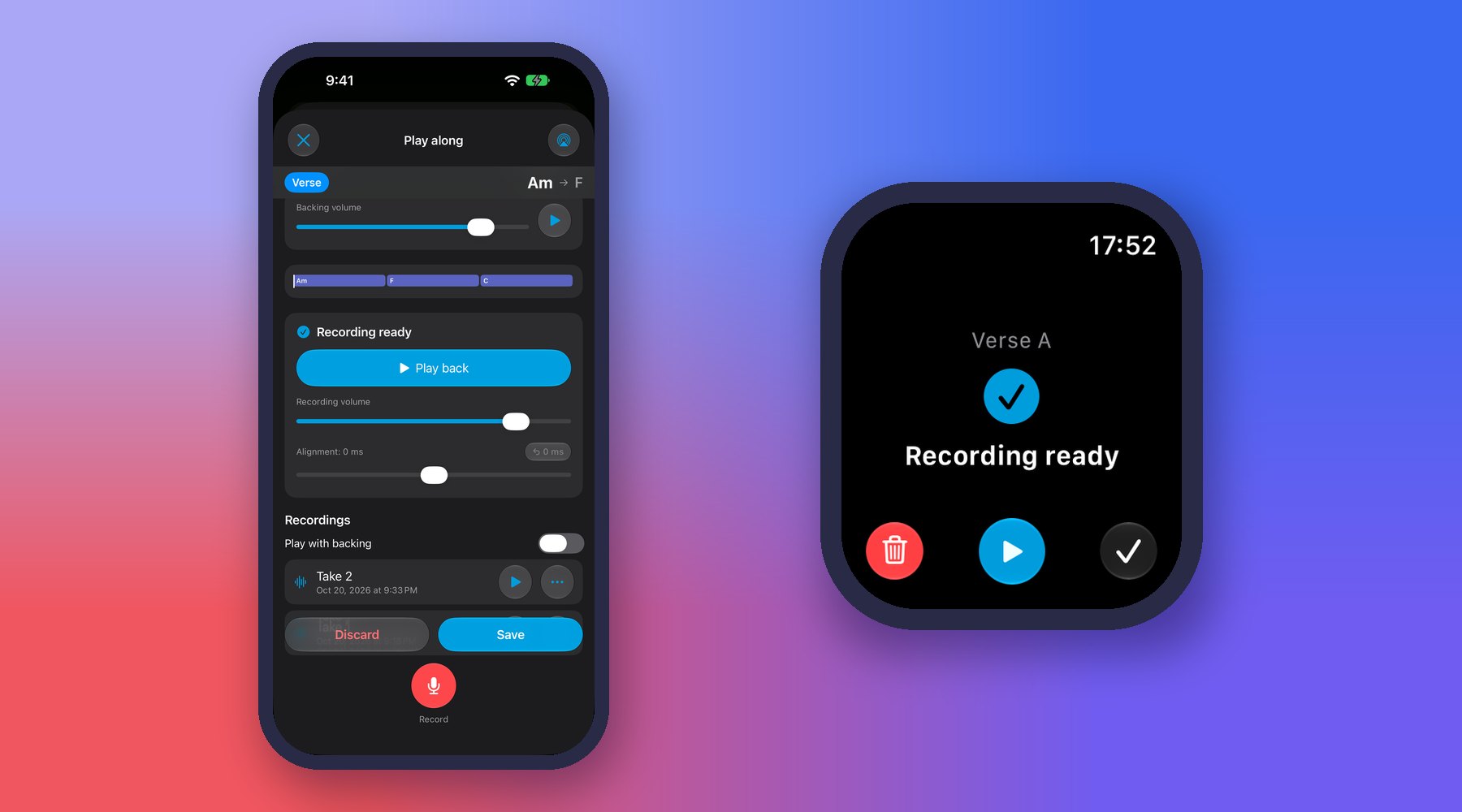
- Open a loop, choose Play along in Practice, set it up, then tap Start Practice.
- Set up first: speed, pitch, a count-in, a delay before count-in, and target repetitions that stop the recording for you.
- Stems: with a subscription you can mute or rebalance individual instruments, so you can play along with the band minus your own part.
- Listen back: your take plays aligned to the loop, so mistimed notes are easy to hear. Keep the ones worth keeping.
- Saved takes: replay them any time, with or without the backing track.
- Save as a practice: store the whole setup under a name and reuse it later — it syncs across your devices, and your practice time counts toward your goal and streak.
- Preview the backing: tap play next to the backing volume to balance the mix before you record anything.
- Click & chords: switch the metronome on to hear the beat while you record, and if the song has been analyzed the loop’s chords scroll past with a playhead.
- Microphone access is required — allow it the first time you start, or later in the iOS Settings app.
- Manage your takes: rename or delete any take from the ••• menu beside it.
- Takes stay on this device: recordings are stored locally, not in iCloud — the practice setup syncs, the audio doesn’t.
Audio routing & latency
- Microphone: pick any connected input — built-in, wired, or an audio interface. On the built-in mic you can also choose front or back. Play a few notes and watch the level meter.
- What you hear: the card shows the current output and its delay in milliseconds. iOS decides the output, but you can force the built-in Speaker with the toggle.
- Calibrate: on wireless output (Bluetooth or AirPlay) the reported delay is often inaccurate, so tap Calibrate… and tap along with the metronome once. It’s unavailable while a count-in, recording or playback is running.
- Change output: tap the AirPlay button on the card. During a count-in or recording, the AirPlay button and the Speaker toggle are unavailable — switching output mid-take would throw the timing off.
In a practice queue
A saved play-along practice can be added to a practice queue, so it runs in order with your other practices — the queue header shows the song and the practice name, and you step to the next item right from the recording screen.
💡 Tip: Use headphones. On the speaker, the backing track leaks into the microphone and ends up in your recording — Music Looper warns you when this happens.
💡 Tip: On wireless headphones there is always some audio delay. Calibrate it once from the routing card, then use the alignment slider when listening back to fine-tune the last few milliseconds.
💡 Tip: Recording on the speaker? Your take already contains the backing track, so there’s nothing to align — that’s why the alignment slider is hidden. Use headphones for a clean take you can align and rebalance afterwards.
💡 Tip: With an Apple Watch you can start, stop and save takes from your wrist — see the Apple Watch topic.
← All User Guide topics · Previous: Daily practice goals, streaks and smart review · Next: Organize songs into groups and setlists
Download Music Looper on the App Store – for iPhone, iPad, Mac and Apple Watch.