
Music Looper turns any song into a focused practice tool — loop the hard part, slow it down, isolate instruments, and track your progress.
Adding songs
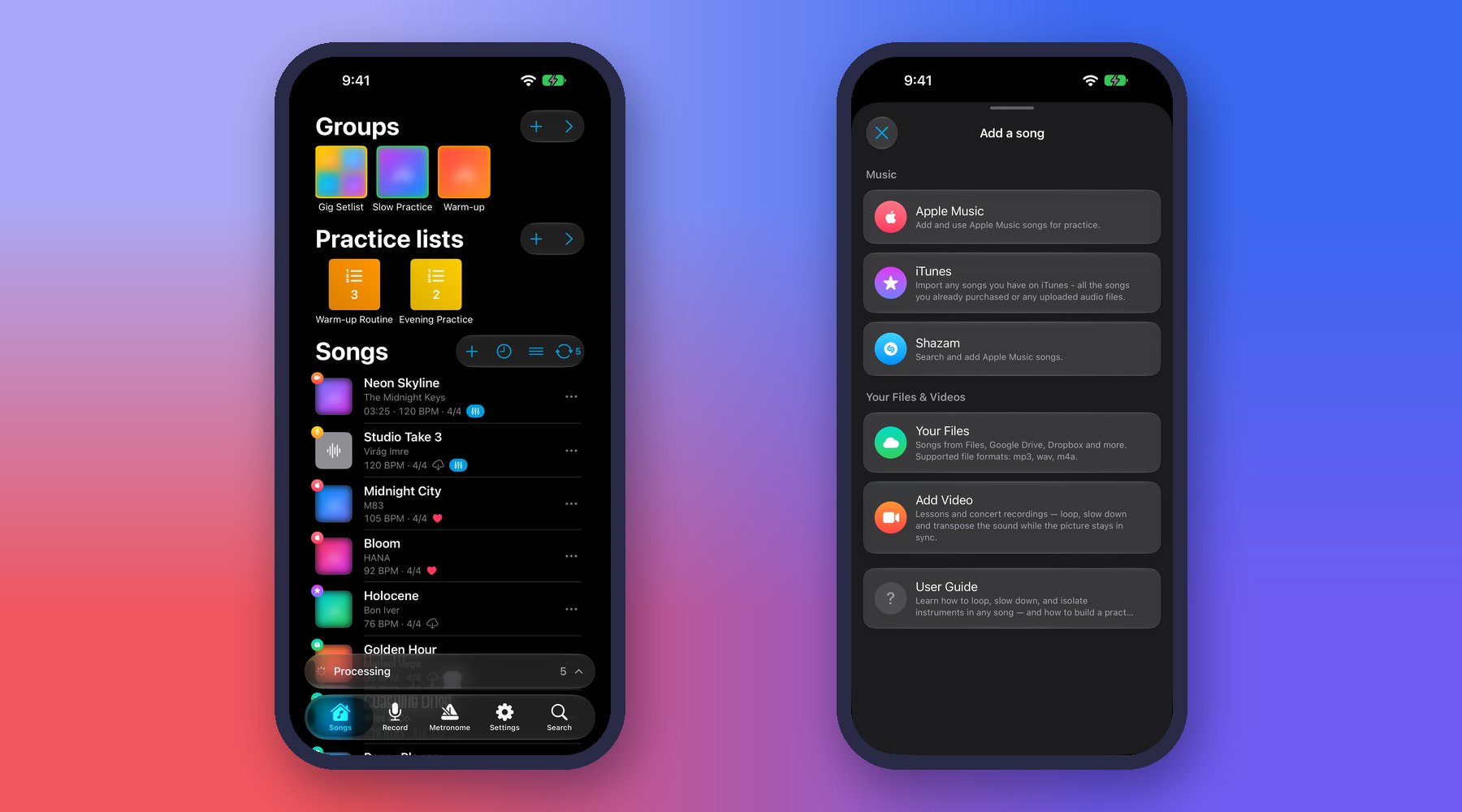
- Import from Apple Music — an active Apple Music subscription is required to open Apple Music tracks.
- Import audio files stored on your device.
- Your library, loops, and practice history sync automatically across your devices via iCloud.
Make a recording on the Record tab. After you tap Save, it appears as a new song in your Songs list — its name starts with Record, followed by its length and the date — and the list scrolls straight to it. Open it to create loops, just like any other song. Recordings live in your Music Looper library and sync via iCloud, so you won’t find them in the Files app; to get an audio file, open the song’s functions screen and tap Export.
Recorded or imported a part and don’t know what it is? Open the song’s functions screen and tap Shazam to identify it and find the track on Apple Music. Shazam search requires a subscription.
On iPad and Mac, tap the sidebar button in the tab bar to open the sidebar — your Groups and Practice lists are right there. The Songs tab shows your list on the left and the open song on the right; for more room, hide the list with the button at the top left of the song.
Import videos — lessons or concert recordings — and loop, slow down and transpose their sound while the picture stays in sync.
← All User Guide topics · Next: Practicing with Apple Music songs
Download Music Looper on the App Store – for iPhone, iPad, Mac and Apple Watch.