
Loop, slow down and transpose a video’s sound while the picture stays in sync.
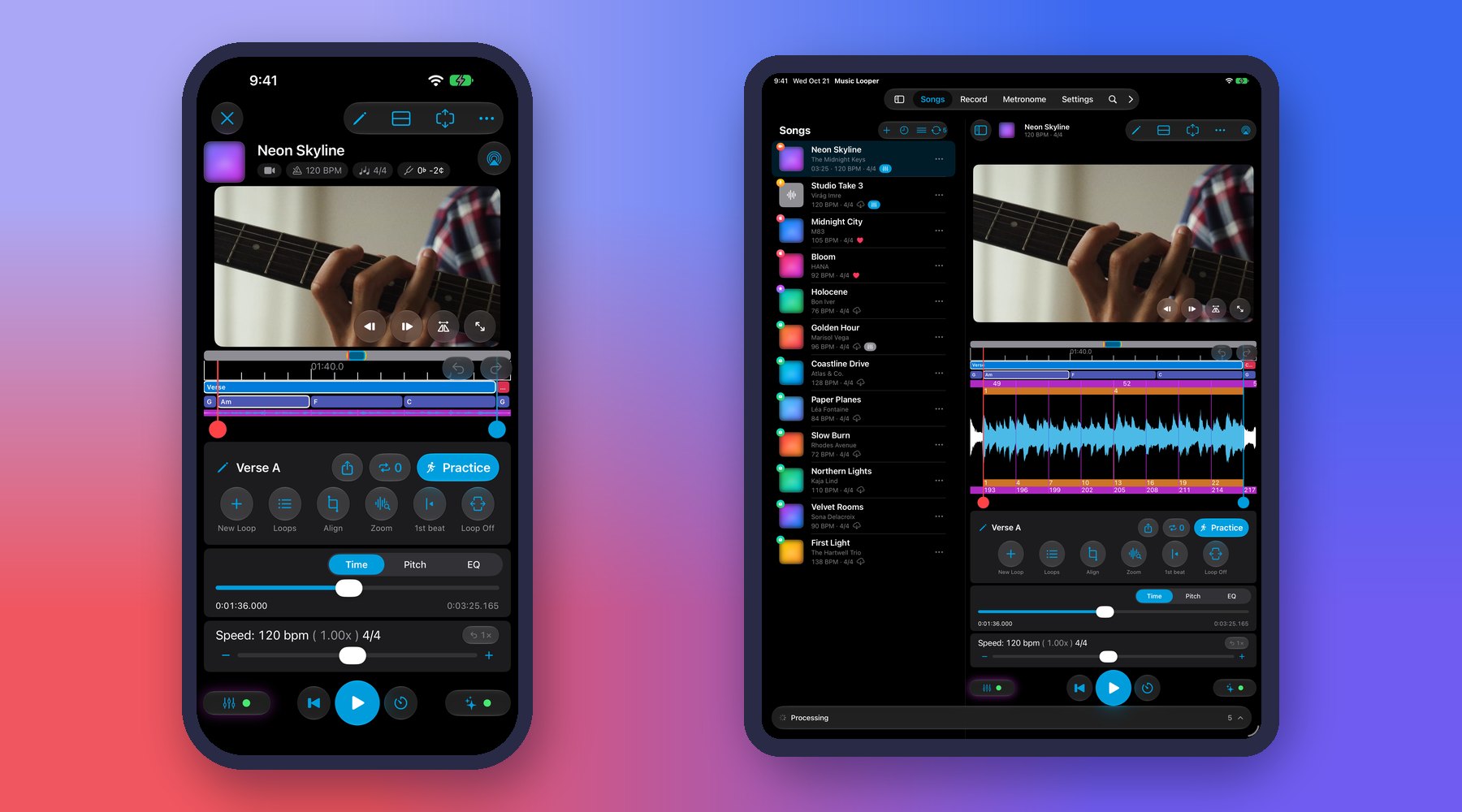
Adding a video
- Add Song ▸ Add Video: choose From Photos or From Files. You can also open a video in Music Looper from another app.
- iCloud Photos: videos stored in iCloud are downloaded first — for long videos this can take a few minutes. You can switch to another app meanwhile — the import continues in the background, and you can stop it at any time.
- The sound is the song: Music Looper takes the audio from the video, so the waveform, loops, analysis, the Mixer and export work just like with an audio file.
Watching while you practice
- View menu: switch between Video and Waveform, Video Only and Waveform Only on the song screen.
- Always in sync: speed, pitch and loops change the sound, and the picture follows it — at slow speeds and every time a loop repeats.
- Frame by frame: when paused, the frame buttons step one frame at a time; hold them to keep stepping.
- Zoom and mirror: pinch to zoom in on the instrument, drag to move, double-tap to reset. Mirror flips the picture, so a lesson filmed from the front matches your own view.
- Full screen: the video as large as possible — here you can turn the phone sideways. Double-tap, or use the corner button, to switch between filling the screen and showing the whole picture.
In the practice views and in Play Along, the video stays pinned at the top, so you can watch the teacher while the counters and controls stay below.
Videos on your devices
The video is stored only on the device where you added it — only the audio and your loops sync via iCloud. On another device, open the song’s ⋯ menu and choose Attach Video to add the same video there; Music Looper checks that its length matches the song. Settings ▸ Videos on This Device shows the space used and lets you remove videos — the songs, their audio and loops are kept.
💡 Tip: Can’t see the video in Video and Waveform? The screen may be too small for both — switch to Video Only, or collapse the Speed panel with the button at the top of the song screen.
💡 Tip: Importing videos and keeping the picture in sync while you loop, slow down and transpose are free. Zoom, mirror and full screen need a subscription.
See all premium features and pricing on the Music Looper home page.
← All User Guide topics · Previous: Practicing with Apple Music songs · Next: Loop a section of a song (A/B repeat)
Download Music Looper on the App Store – for iPhone, iPad, Mac and Apple Watch.